Write mode: a calmer editor for long documents
A visual editor for policies, memos and proposals. Try other words, sentences and paragraphs in place, fade text without deleting it, and get help from an AI Lab that never rewrites you.
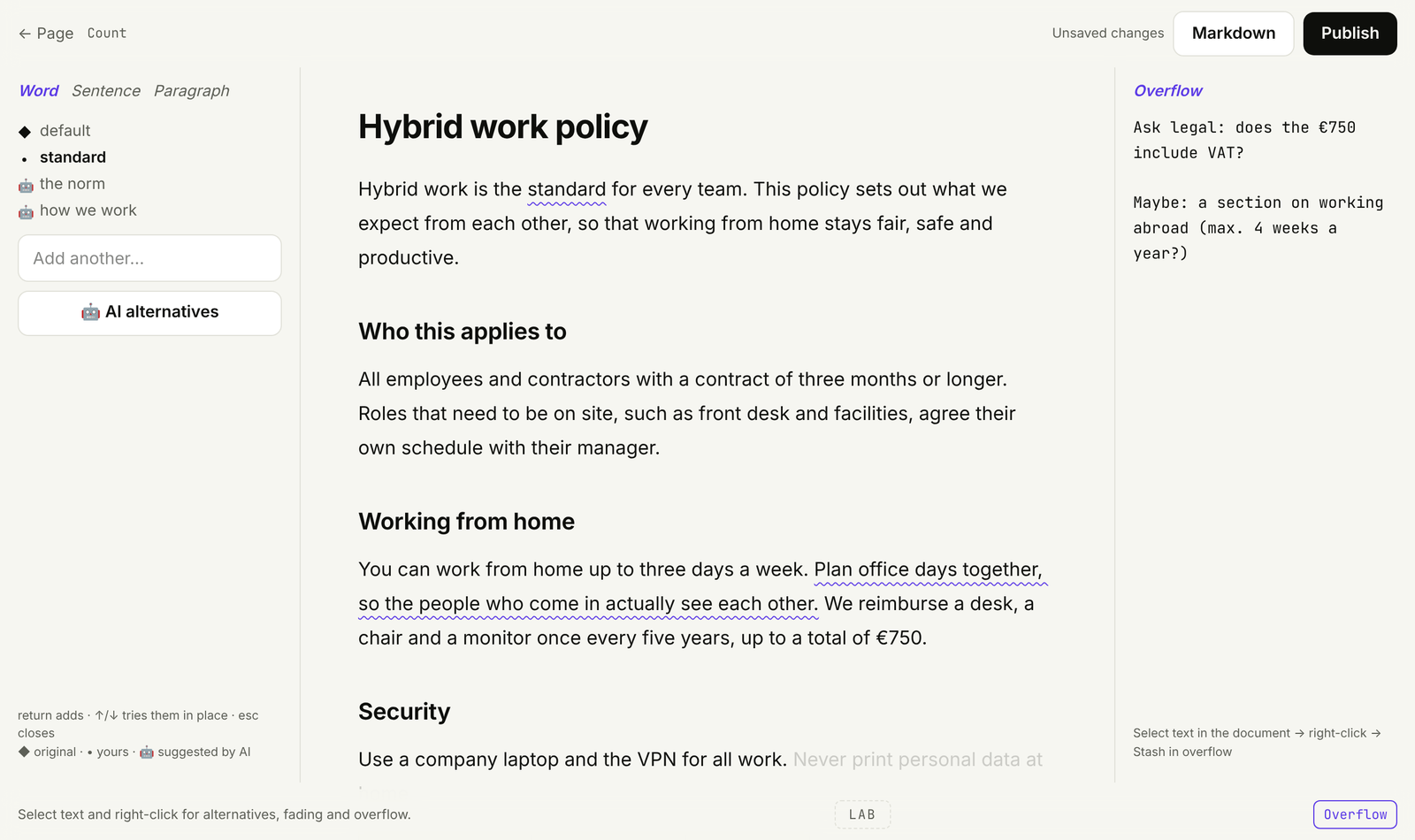
Markdown is great for a knowledge base: agents read it, search indexes it, and it never surprises anyone. But people who write long documents (a remote work policy, a board memo, a procurement rule) don't think in markdown. They think in drafts. They try a word, doubt a sentence, park a paragraph "just in case".
So today we're releasing Write mode: a visual editor built for that way of working. Open any page and click Open in Write mode.
Alternatives, in place
Select a word, a sentence or a whole paragraph and press ⌘⇧A (or right-click → Alternatives for selection). Add other versions in the panel. Text with alternatives gets a subtle wavy underline. Hover it and press ↑ or ↓ to read each version in context, inside the real paragraph, not in a comment bubble.
Small things matter here: swap "a paperclip" for "eraser" and it becomes "an eraser" on its own.
Fade, don't delete
Not sure a sentence belongs? Right-click → Fade it. It stays on the page at a whisper, so you can read the paragraph without it and decide later. Faded text is left out when you publish. Right-click → Bring back when you change your mind.
Overflow
Every writer keeps a pile of "maybe later" text. Instead of scrolling to the bottom of the document, open Overflow: a notepad next to your draft. Select text and choose Stash in overflow to move it there. It's saved with your draft and never published.
The Lab: AI that points, not writes
Click LAB at the bottom of the screen. It can mark typos (with one-click fixes), the weakest sentences, sentences that run long or get convoluted, words that don't fit the tone, and hedges and filler. It can also trim: 10%, 20%, 30% or half. A trim only fades what could go. You make the cuts, walk through them one by one, or keep everything.
The AI never rewrites your document. When you ask for AI alternatives, they appear in the list with a 🤖 and the model's name, next to your own. You choose.
The Lab and AI alternatives run on your workspace's own Anthropic or OpenAI key. No key, no AI: everything else in Write mode works without one.
Drafts and publishing
Write mode autosaves a draft as you type, separately from the page. Teammates and agents keep seeing the published version until you click Publish. Publishing turns your draft into clean markdown (current wordings, no faded text, tables intact) and keeps the previous version in the page's history. If someone changed the page while you were drafting, Write mode tells you before anything is overwritten.
Markdown stays the default
Nothing changes for agents, search, the API or the .md twin of every page. The markdown editor is still one click away, and still the default. Write mode is there when a document deserves it.
Inspired by Jason Fried's idea of "alternative control" for writing.